
Every hour,
accounted for.
WorkLedger is a Jira Cloud app for logging work and reporting on it at scale. Jira worklogs remain the canonical record — the app adds a fast, filterable reporting layer (timesheet board, totals, CSV export) plus per-worklog metadata Jira doesn't have natively: a billable flag and free-form tags. This edition adds expected-hours tracking, logging reminders, month locks, group-by-project/tag reporting, and logging straight from the board.
All names, sites, projects, and figures in this manual are fictional (e.g. acme.atlassian.net, project PROJ, user Alex Rivera).
The app's surfaces
WorkLedger shows up in four places inside Jira. Everything else in this manual hangs off one of these.
Logging work
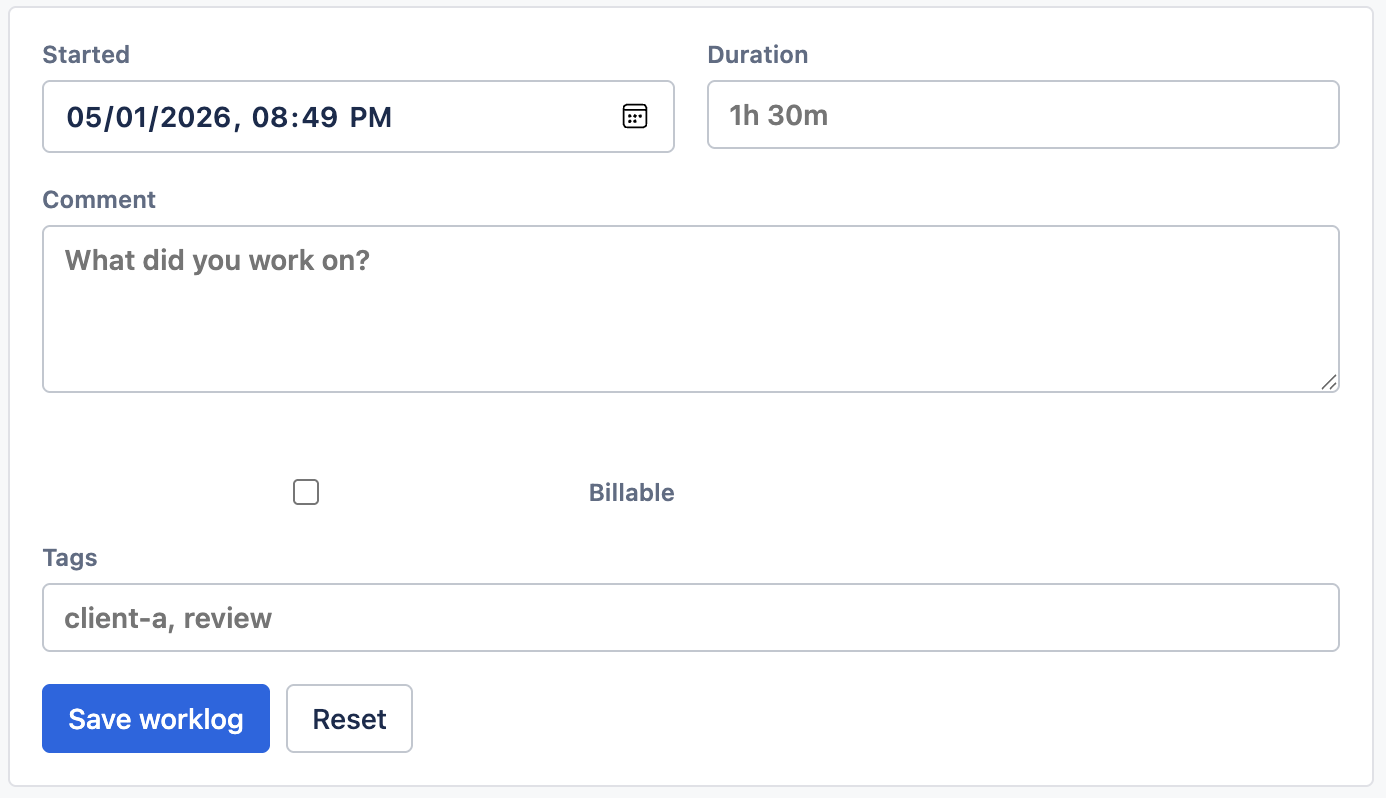
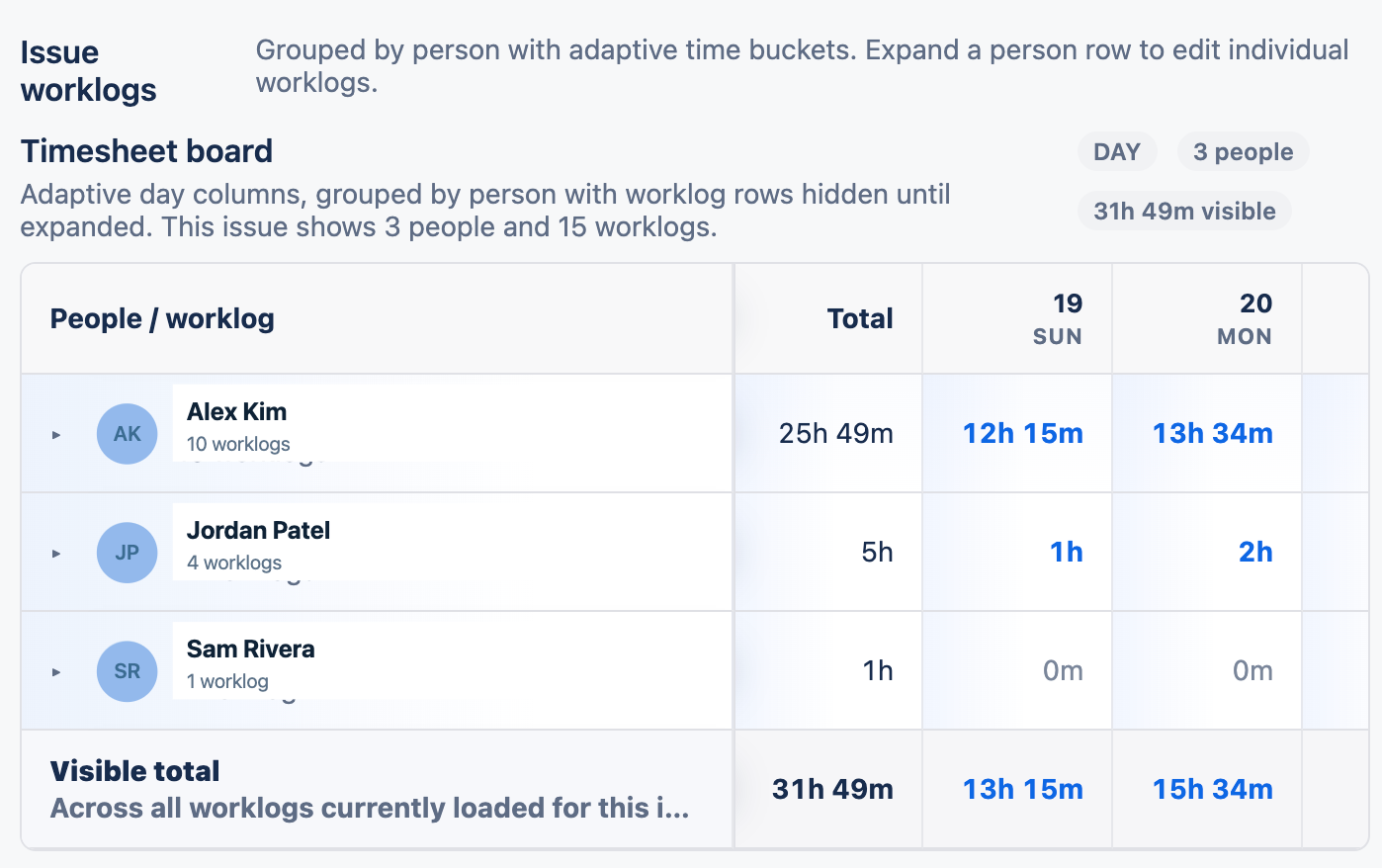
Open an issue and use Log work (ledger) — a compact modal — or the Work logs (ledger) activity panel, which offers the same form plus the issue's worklog history and a per-issue timesheet board.
Fields
| Field | What it does |
|---|---|
| Started | Date and time the work began. |
| Duration | Accepts 1h 30m, 2h, 45m, or a bare number, which is read as minutes (90 = 1h 30m). |
| Comment | Free text — "What did you work on?". |
| Billable | Checkbox. WorkLedger metadata stored on the worklog; drives the Billable / Non-billable totals and filters in the dashboard. billable |
| Tags | Comma-separated labels, e.g. client-a, review. Searchable from the dashboard's Attribute value filter. |
Buttons
- Save worklog — creates (or updates, when editing) the entry in Jira.
- Delete — removes the entry from Jira.
- Reset / Cancel edit — clears the form.
The Issue worklogs list underneath shows every entry on the issue — your own entries have an Edit button.
The reports dashboard
Apps → Workledger (ledger). The page has up to three tabs: Report, Settings & sync, and Permissions — the last two appear only for people with config access (see §5).
3.1 Filters
| Filter | How it behaves |
|---|---|
| From / To | The reporting window, matched against each worklog's started date. Defaults to the last 365 days. |
| User | Type a display name and pick from the suggestions. Multiple users can be selected; leave empty for all users. The picker also finds people who logged work and were later deactivated. Visible only to viewers with See all worklogs — everyone else is always clamped to their own entries. |
| Project | Type a project name or key and pick from the list. Multiple projects can be selected; leave empty for all projects. |
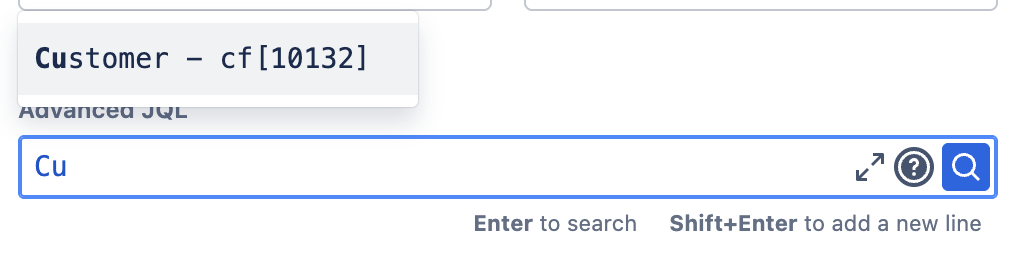
| Advanced JQL | Jira's native JQL editor with autocomplete. Press Enter to run, Shift+Enter for a new line. See details below. |
| Billable | All entries, Billable only, or Non-billable only. |
| Group by new | Person (default), Project, or Tag — the dimension the board's top-level rows (and pagination) group on. See §3.3. |
| Attribute value | Comma-separated tokens, e.g. client-a, manual. An entry matches when any token appears in its tags or other metadata fields. Matching is case-insensitive and ignores spaces/hyphens/underscores, so client a also finds client-a. |
Click Apply filters to run the report.
Advanced JQL in detail
assignee = currentUser() ORDER BY updated DESC
labels = client-a AND status changed during (startOfMonth(), now())
- The JQL is combined (ANDed) with the date window and the other filters — with one exception: it replaces the Project filter (the one dimension they share) while set. A banner reminds you of this.
- The query runs with your Jira permissions, so it can only ever match issues you can browse.
- Very broad queries are capped at the first 500 matching issues; the report tells you when that truncation happened.
3.2 Summary metrics
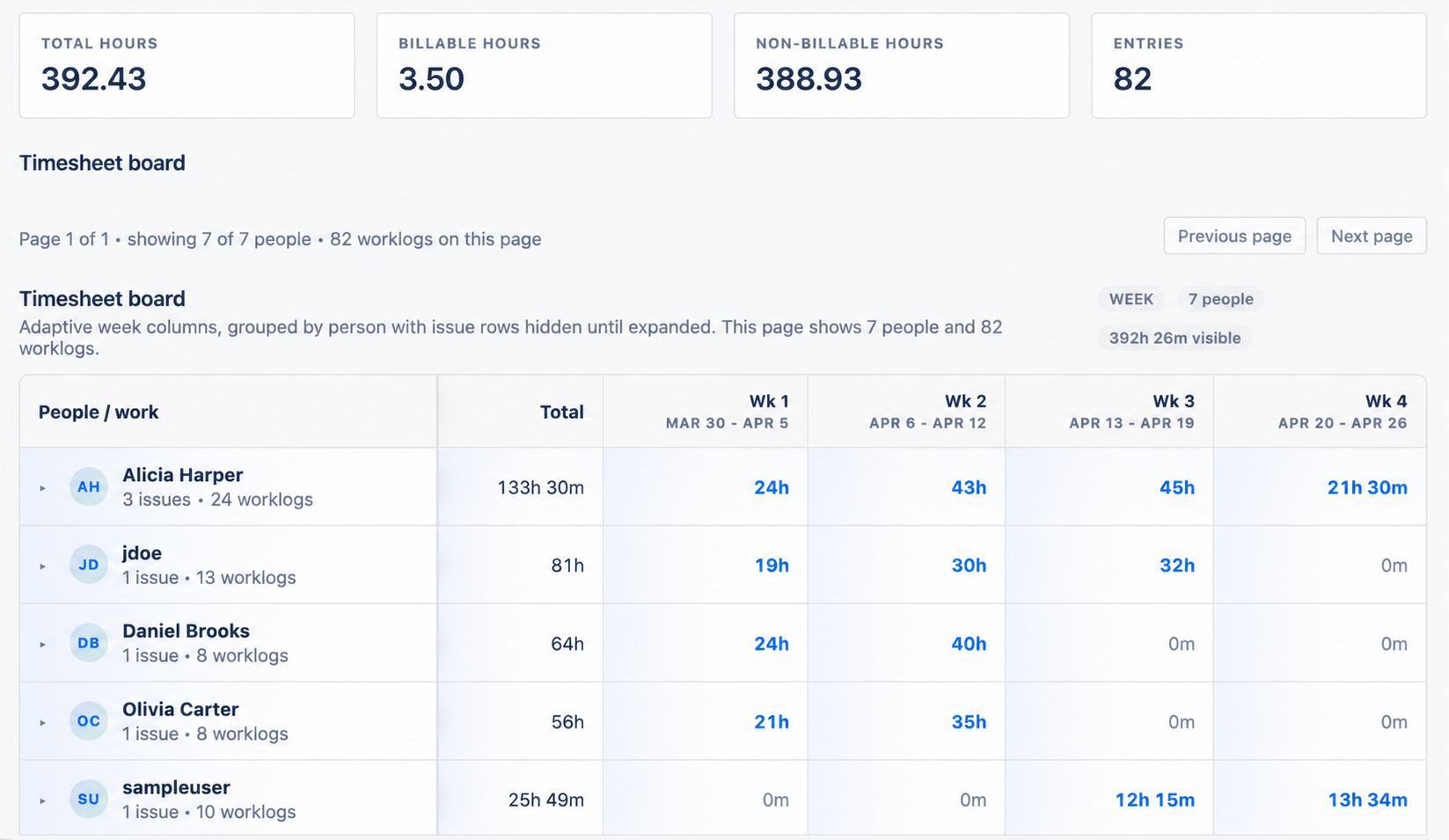
Four cards summarize everything matching the filters — not just the visible page: Total hours, Billable hours, Non-billable hours, and Entries (worklog count).
3.3 Timesheet board
The board groups worklogs by the Group by dimension — one top-level row per person (default), project, or tag — with time columns that adapt to your date window: days for short windows, then weeks, then months for long ones.
| People / worklog | Total | Mar | Apr | May |
|---|---|---|---|---|
| ▸Alex Rivera — 4 issues · 328 worklogs ⚠ edited after lock | 204h 30m | 90h | 71h | 43h 30m |
| ▸Sam Patel — 3 issues · 288 worklogs | 201h 30m | 64h | 76h | 61h 30m |
| Visible total | 406h | 154h | 147h | 105h |
- Click a top-level row to expand its issues; each issue row shows the issue key, its summary, and the time per column.
- Worklogs you're allowed to change show an Edit button when expanded — edits open the same form as the issue surfaces.
- Group by Project answers "hours per client this month": one row per project (with the project's name when known), expandable to its issues.
- Group by Tag groups by each entry's tags. An entry with several tags appears under each of them, so tag totals can add up to more than the filtered total (the caption reminds you); untagged time is collected under (no tag). Tag grouping loads at most 5,000 worklogs per page.
- Heavy reports paginate by the grouping dimension (Previous page / Next page). The board caption tells you how many people, projects, or tags — and how many worklogs — the current page shows. The summary cards always reflect the full filtered total, so if the page shows fewer entries than the Entries card, there are more pages (or more detail rows than the display cap) to page through.
Logged against expected new
When an admin has configured expected hours and the board is grouped by person, each person's Total column reads logged / expected — e.g. 33h / 40h — and turns red when they logged less than expected. Expected time is the Mon–Fri workdays in your From/To window (counting only days up to today) × that person's hours per day, so a mid-week view only expects the days that have already happened.
An N behind pill counts how many people on the page are under their expected hours, and a Sort by missing time toggle reorders the page so the largest gaps come first.
The "edited after lock" pill
An issue row (or its top-level row) can carry a small ⚠ edited after lock pill: one or more of its worklogs sit in a locked month but changed after the lock was set — meaning the change came through a surface the lock cannot guard, such as Jira's native work log. Hover the pill for the count. The same information is in the CSV's editedAfterLock column.
3.4 Logging time from the board new
Anyone who can open the dashboard can record time without leaving it. When the board is grouped by person and showing day columns — narrow the From/To window to about two weeks or less to switch the columns to days — each day cell shows a small + on hover and is clickable:
- Clicking a person's day cell opens a floating window listing everything that person logged that day, grouped so you can see each issue.
- Clicking a cell on an expanded issue row opens the same window scoped to that one issue and day — even when the cell is currently empty, so you can log fresh time against that issue for that day.
In the window you can…
- Review the day's worklogs — duration, issue, start time, comment, billable flag and tags.
- Add a new worklog: set the duration (
1h 30mor bare minutes), start time (pre-filled to the chosen day), comment, billable flag and tags, then Add worklog. There is no issue picker — the entry attaches to the issue of the cell you opened, or, from a person cell with several issues that day, to the issue you pick from the Log to: chips. - Edit or Delete your own entries via the Edit button on each row.
3.5 Logging reminders new
Built on expected hours, reminders nudge people to keep their time up to date. They are on by default and can be switched off entirely (§4.1).
- Your weekly nudge — whenever your logged time for the running week (Monday through today) is below what's expected of you, a dismissible banner appears on the dashboard and on the issue surfaces: "You've logged 12h of 40h expected this week." It disappears the moment you catch up (including time you've pre-logged for later in the week), and closing it with the × keeps it hidden for the rest of that week. People excluded from tracking (a 0 h/day override, §4.1) never see it.
- "Who's behind last week" — viewers with See all worklogs get an extra card at the top of the Report tab listing everyone who finished the previous week under their expected hours, largest gap first (e.g. Alex Rivera — 26h of 40h logged · −14h). It respects the same permission as the rest of the dashboard and shows nothing when everyone is caught up.
3.6 CSV export
Export CSV downloads the currently loaded result set as workledger-report-<from>-to-<to>.csv with the columns:
timeSpentHours, billable, accountKey, categoryKey, origin,
approvalState, editedAfterLock, comment
Settings & sync
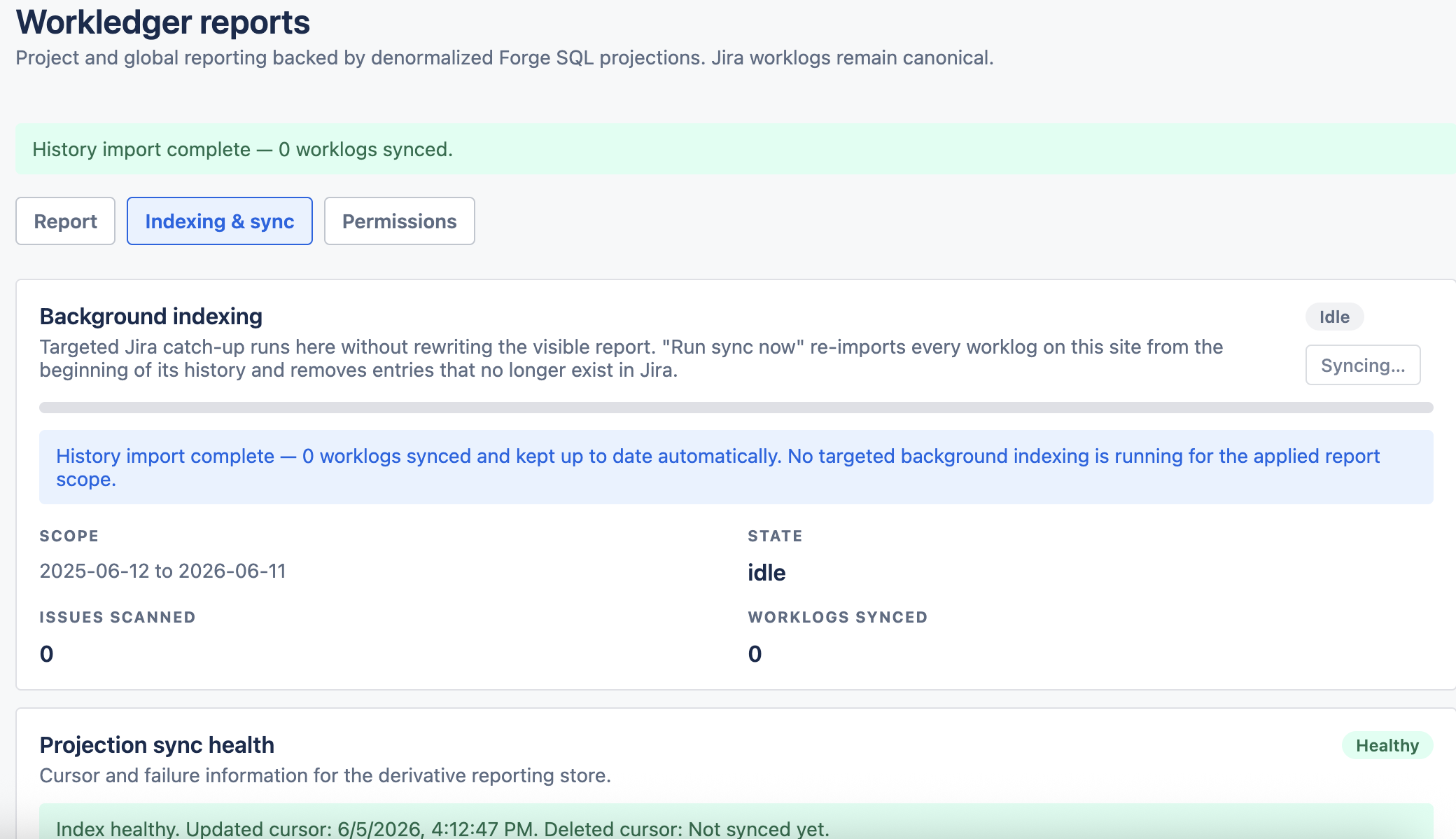
The dashboard reads from WorkLedger's synchronized index, not live from Jira on every query — that's what keeps large reports fast. This tab holds the app's settings and shows and controls that synchronization.
4.1 Expected hours new
The reference point for the board's logged / expected comparison (§3.3) and for logging reminders (§3.5).
| Setting | What it does |
|---|---|
| Default hours per workday | Applies to everyone without an override. Ships as 8; fractions like 7.5 work. |
| Per-user overrides | Search for a person and set their own hours per day, e.g. 4 for a part-timer. Setting an override to 0 excludes that person from expected-hours tracking entirely — bots, service accounts, contractors paid per deliverable. Their row shows plain logged time with no expected figure and they are never flagged as behind. |
| Show logging reminders | A checkbox, on by default, controlling the weekly nudge and the "Who's behind last week" digest (§3.5). Uncheck it to switch off both everywhere, while keeping the board's logged / expected comparison. |
Workdays are Monday–Friday; holidays and individual schedules beyond the hours-per-day number aren't modeled. Click Save expected hours to apply — the board and reminders reflect the change immediately.
4.2 Period locks — close a month new
When a month's timesheets have been billed or paid out, lock it: pick the month in the Period locks card and click Lock month. From that moment WorkLedger blocks adding, changing, and deleting any worklog whose started date falls in that month — on every app surface, for everyone, including admins. Attempts are refused with a banner like "June 2026 is locked."
Moving an entry into or out of a locked month counts as changing it and is blocked too. Unlock restores normal behavior at any time; locking only affects edits, never reporting — locked months stay fully visible in the dashboard.
editedAfterLock CSV column, so out-of-band changes are visible rather than silently accepted.4.3 How data stays in sync
- Instantly — creating, updating, or deleting a worklog anywhere in Jira triggers an event the app applies within seconds.
- On install — the app immediately starts a self-continuing background import of the site's entire worklog history. You can use the dashboard while it runs; a banner shows progress ("Importing your worklog history in the background — 12,400 worklogs so far…") and results fill in as they arrive.
- Daily — a scheduled reconciliation repairs anything the events missed and removes index entries whose worklogs no longer exist in Jira.
4.4 Run sync now
The Run sync now button forces a full re-import: it re-reads every worklog on the site from the beginning of its history and removes entries that no longer exist in Jira. Unchanged entries are skipped cheaply, so re-running it is safe at any time.
Use it when…
- You just installed the app and don't want to wait for the background import to finish on its own schedule.
- A report looks incomplete — e.g. JQL finds the issues but the entries are missing. This rebuilds the index from scratch.
- Your site's data was restored or copied over — for example a sandbox refreshed from production every week. A data copy replaces Jira's content without emitting events, which leaves stale entries from the previous copy in the index; totals then look inflated (roughly the sum of every copy ever made). One click purges the stale generations and re-imports the current data. Even without the click, the daily reconciliation cleans this up over the following days.
4.5 Status cards
- Background indexing — state (
idle/running/completed), the scope being indexed, issues scanned, and worklogs synced. This also tracks the targeted catch-up that runs automatically when you filter by projects or JQL: the app proactively fetches that scope from Jira in the background without rewriting the visible report. - Projection sync health — count of sync failures with the latest error message, and the positions of the sync cursors. Occasional transient failures are retried automatically; a steadily growing count is worth reporting to your admin.
Permissions tab
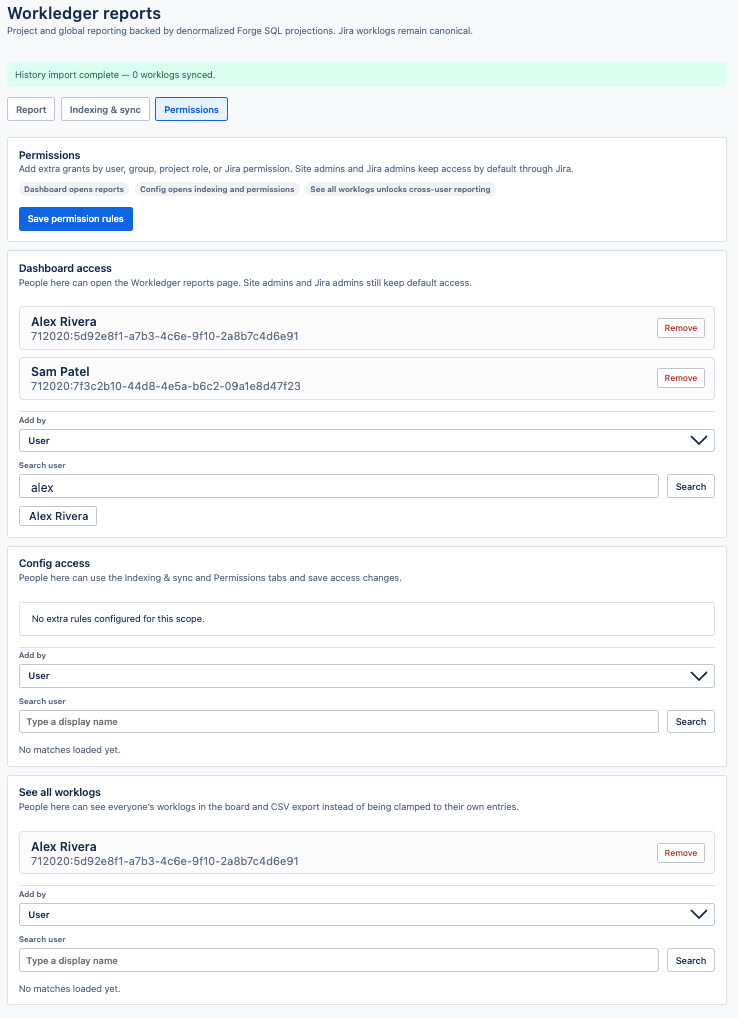
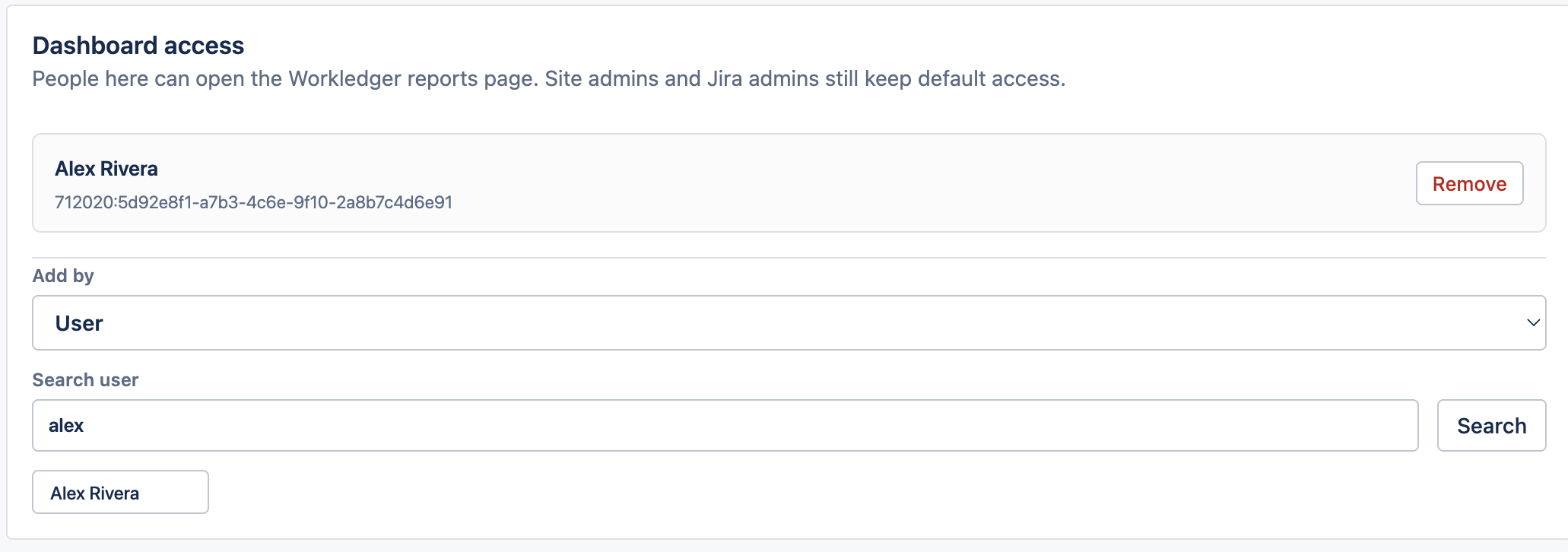
Three independent grant lists, each accepting four subject types — User, Group, Project role (e.g. PROJ • Developers), or Jira permission (anyone holding a given Jira permission).
| Grant list | What it unlocks |
|---|---|
| Dashboard access | Who can open the reports page at all. Site admins and Jira admins always keep access. |
| Config access | Who can use the Indexing & sync and Permissions tabs and save changes there. |
| See all worklogs | Who can see everyone's entries. Everyone else still opens the dashboard but is clamped to their own worklogs in the board, totals, and CSV export. |
Jira global permissions backing the defaults
Two Jira global permissions back the defaults — manageable from Jira's own permission screens, both granted to jira-administrators initially:
- Workledger dashboard access
- Workledger dashboard admin
Workledger Admin page
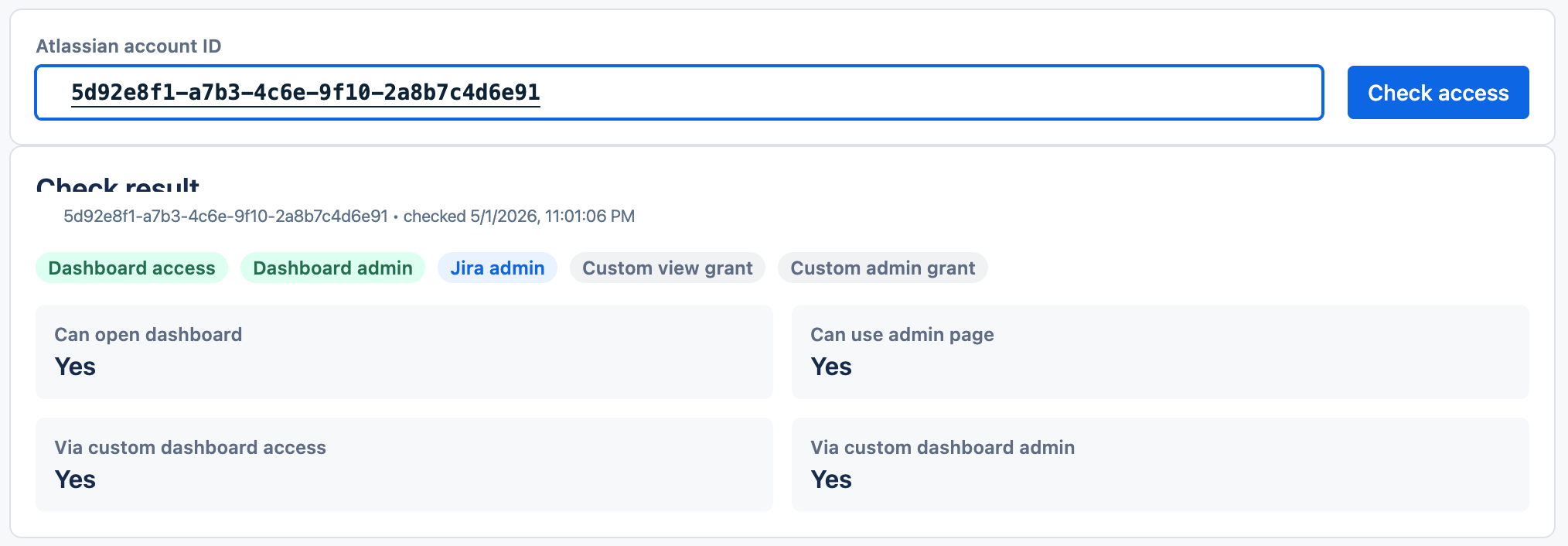
A diagnostics page for admins: Jira admin section → Workledger Admin.
- Current operator / Grant model / Resolved permission keys — shows which permission sources apply to you and how they resolved.
- User permission check — enter a display name or paste an account ID (e.g.
5b10a2844c20165700ede21g) and Check access to see whether that person can open the dashboard or the admin page, and why. - UI refresh toggle — switch between the legacy and refreshed visual styles for the app's surfaces, or fall back to the environment default.
Troubleshooting